
Mictrack Config Tool — Help & Tutorial
How to configure your MT700, MT710, MT600 or MT600-NB GPS tracker over USB, right from your browser — no software to install.
Overview
This configuration tool runs right in your browser — no software to install. It connects to your tracker through the USB cable and lets you set the APN, server, network region, and working mode, then writes everything to the device with one click.
Before you start
- Use Chrome or Edge on a desktop/laptop computer.
- Have the included USB Config Cable ready.
- Make sure the USB driver is installed on your computer.
- Your device should be powered on (blue LED on).
Step 1 · Connect your device
- Connect your device to the computer with the USB Config Cable.
- Click Scan Ports. Your browser opens a small device picker — select your USB Config Cable (it may be listed as “USB Serial”, “Prolific…” or similar) and confirm. (The first time, the browser asks permission to access the serial port — click Allow.)
- Make sure the device is powered on, then click Connect.
- The tool opens the port and wakes the device (sends
ETS). When you see Connected and the model badge (MT700 / MT710 / MT600 / MT600-NB), you're ready.
Step 2 · Configure
In the Setup tab you'll set two groups: Network and Working Mode.
Network
| Field | What to enter |
|---|---|
| APN | The APN of your SIM card. ⚠️ Confirm it with your SIM provider — a wrong APN stops the device from getting online. |
| Server & Port | The address and port of the tracking server your device should send data to (for example demo.traccar.org : 5030). Enter your own server here. |
| Region | Pick Global, USA / Canada, or Australia / NZ. This sets the correct network bands automatically. |
Working modes
The working mode decides how often the device reports its location — the trade-off between tracking frequency and battery life.
MT700 / MT710
| Mode | Best for | Notes |
|---|---|---|
| Mode 1 — Real-time | First test / live tracking | Reports at a fixed interval (10–600 s). Recommended for your first test. |
| Mode 7 — Smart Low Power | Most use cases | Reports when moving, sleeps when still. Good battery balance. |
| Mode 0 — Mix | Vibration-based | Active when vibrating, low-power when still. Slightly higher power than Mode 7. |
| Mode 3 — Ultra Low Power | Long-term assets | Maximum battery life; reports every 1–24 hours. |
MODE command directly. See the working mode guide →MT600 / MT600-NB
MT600 devices use ACC (ignition) state instead of preset modes. You configure three reporting intervals independently:
| Interval | When it applies | Range |
|---|---|---|
| ACC ON | Ignition is on (vehicle running or stationary with engine on) | 10–65535 sec |
| ACC OFF — Moving | Ignition is off but the vehicle is moving (towed) | 10–65535 sec |
| ACC OFF — Parked | Ignition is off and vehicle is stationary | 2–1440 min |
Step 3 · Apply & Reboot
- Click the green Apply & Reboot button at the bottom.
- A preview lists every command that will be sent. Review it, then click Confirm & Apply.
- The tool writes each setting in order and shows the progress.
- When done, the device saves and restarts automatically. The tool stays connected, so you can watch the device's boot messages live in the Device Log — no need to reconnect.
Advanced
Debug Mode
Turns on verbose logging — useful while testing. Remember to turn it off afterward, as it increases power consumption and shortens battery life.
Advanced Command
Send any raw command to the device (for technicians). The ETS session must be active. Note: working-mode (MODE) commands trigger an automatic save and reboot.
Factory Reset (Danger Zone)
Erases all settings and restores factory defaults. Use only when you want to start over. You must type RESET into the confirmation field before the button becomes active — this prevents accidental resets.
Import / Export configuration
Use the Import / Export buttons in the configuration header to reuse a setup across many devices.
- Export saves your current settings as a command list
.txtfile (one command per line, in send order, with the working mode last). - Import reads such a file. The tool checks every command against the list of valid commands, shows a preview, and blocks the file if it contains anything unrecognized. Confirm the preview to apply.
MODE command must appear last (it saves and reboots); for MT600/MT600-NB the REBOOT command plays that role.Device info
The Device Info tab shows the current configuration read from the device — model, IMEI, firmware, server, APN and mode. Click Read Device to refresh it.
Device Log
The Device Log panel (on the right) shows everything sent to and received from your device in real time, including the device's own boot messages.
- Save — downloads the full log as a
.txtfile. If you ever contact support, attach this file — it helps us diagnose your issue much faster. - 🕐 — toggles timestamps on screen (the saved file always includes them).
- ⛶ — expands the log to full screen (press
Escto close).
Troubleshooting
| Problem | What to do |
|---|---|
| No port appears after Scan | Check the cable is fully plugged in; install/repair the USB driver; on Windows 11 see Fix the USB driver on Windows 11. On a Mac, install the PL2303 driver from the App Store, then go to System Settings → Privacy & Security, scroll down and click Allow next to the blocked driver, and restart your computer — the port won't appear until you do. |
| Port appears but won't connect (“Could not open the port”) | On Windows 11 this is almost always the USB driver — see Fix the USB driver on Windows 11. Also close any other program that may be using the port (e.g. a serial terminal tool). |
| "Scan Ports" button does nothing | You're likely not in Chrome or Edge. Open this tool in Google Chrome or Microsoft Edge on a computer. |
| Connects but won't wake up | Make sure the device is powered on (blue LED). Re-select the port and click Connect again. |
| Device doesn't show on platform after Apply | Wait 2–5 minutes; take the device outdoors for the first GPS fix; double-check the APN with your SIM provider. |
| Device Log goes silent after a restart | The device may have gone to sleep (normal in low-power modes). Press its power button and check that the blue LED comes on. |
| Battery drains fast | Turn Debug Mode off, and consider a low-power working mode (Mode 7 or 3). |
Fix the USB driver on Windows 11
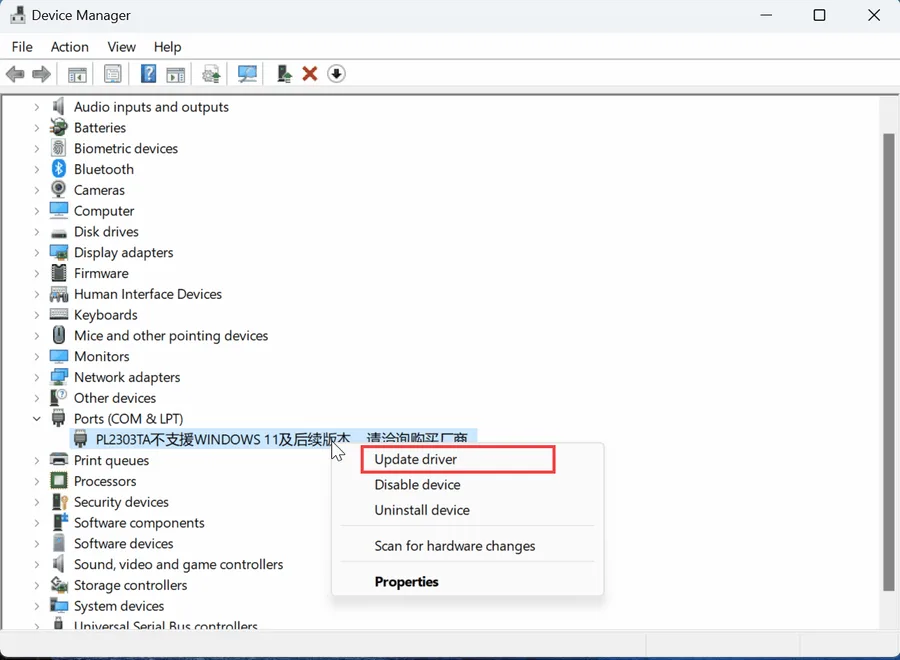
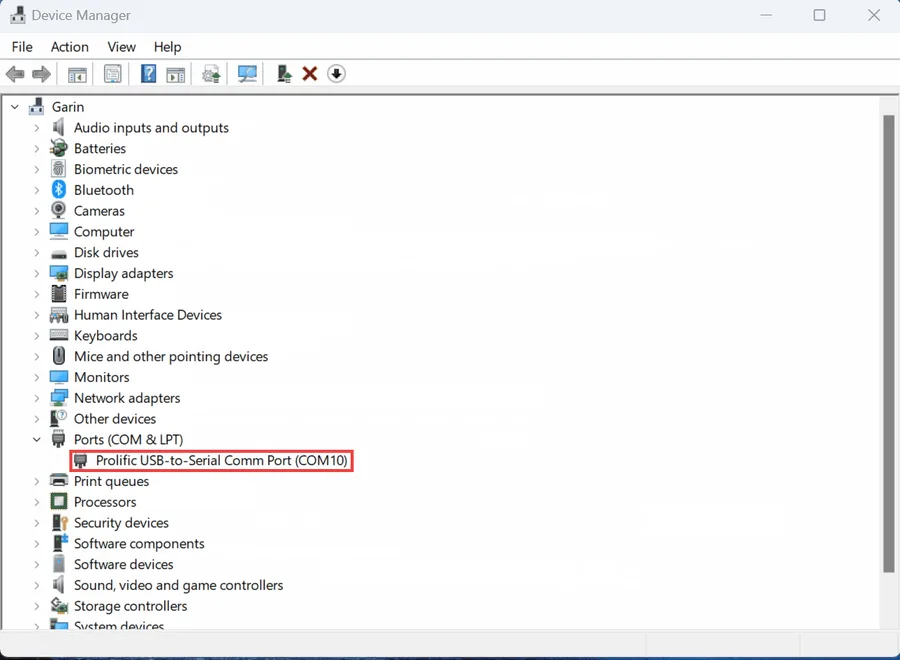
Use this if, on Windows 11, the tool finds the port but cannot connect (“Could not open the port”), or the port doesn't appear at all — and in Device Manager the cable shows up as “PL2303TA不支援WINDOWS 11及后续版本,请洽询购买厂商”. The cable itself is fine; Windows just loaded a driver version that doesn't support it. Switch back to the older driver:
- Press Win + X on your keyboard and choose Device Manager.
- Expand Ports (COM & LPT), right-click the entry named “PL2303TA不支援WINDOWS 11…”, and choose Update driver.
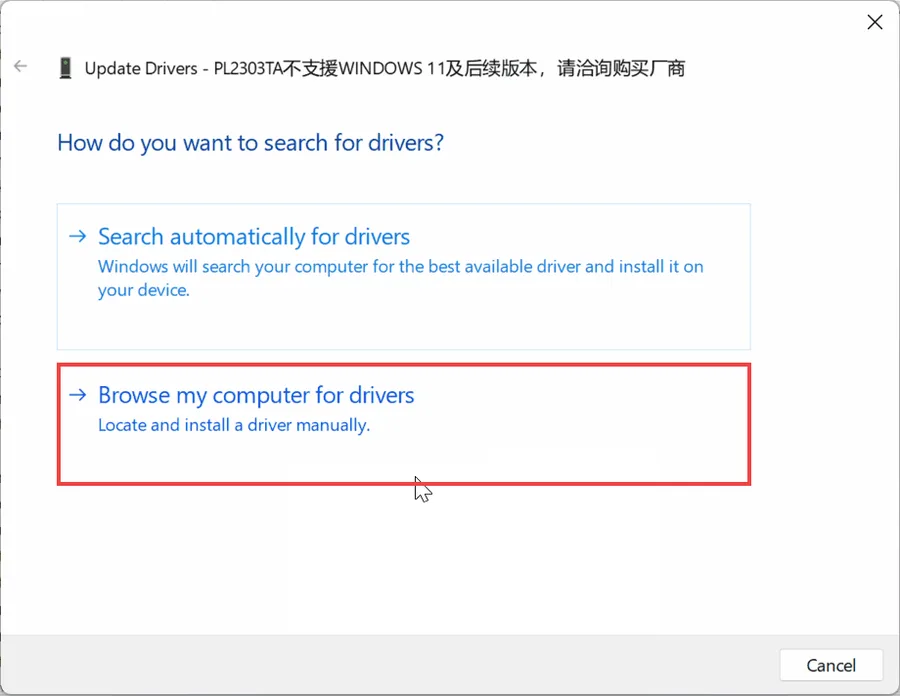
- Choose Browse my computer for drivers.
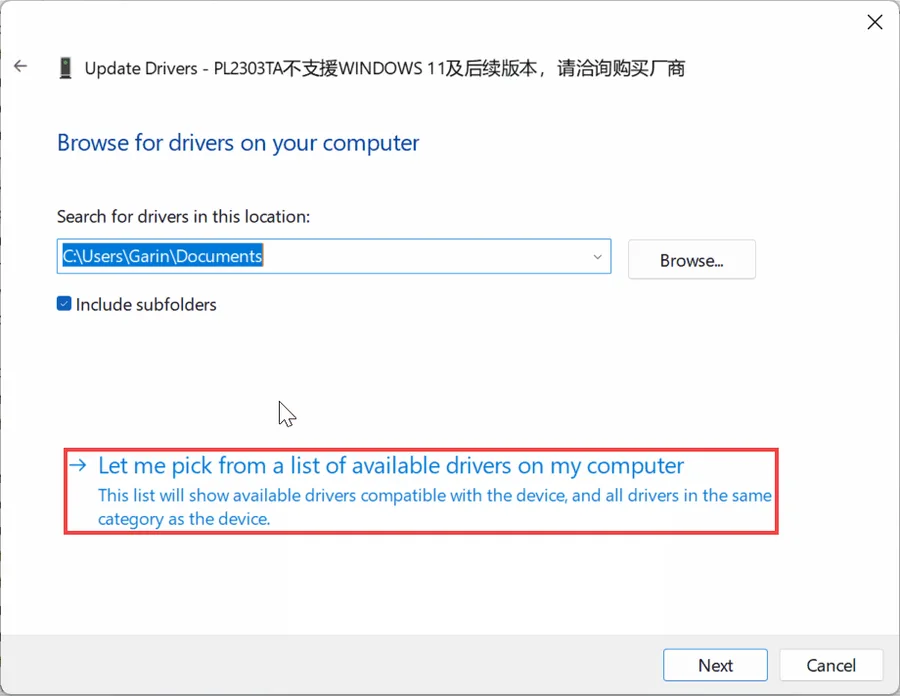
- Click Let me pick from a list of available drivers on my computer.
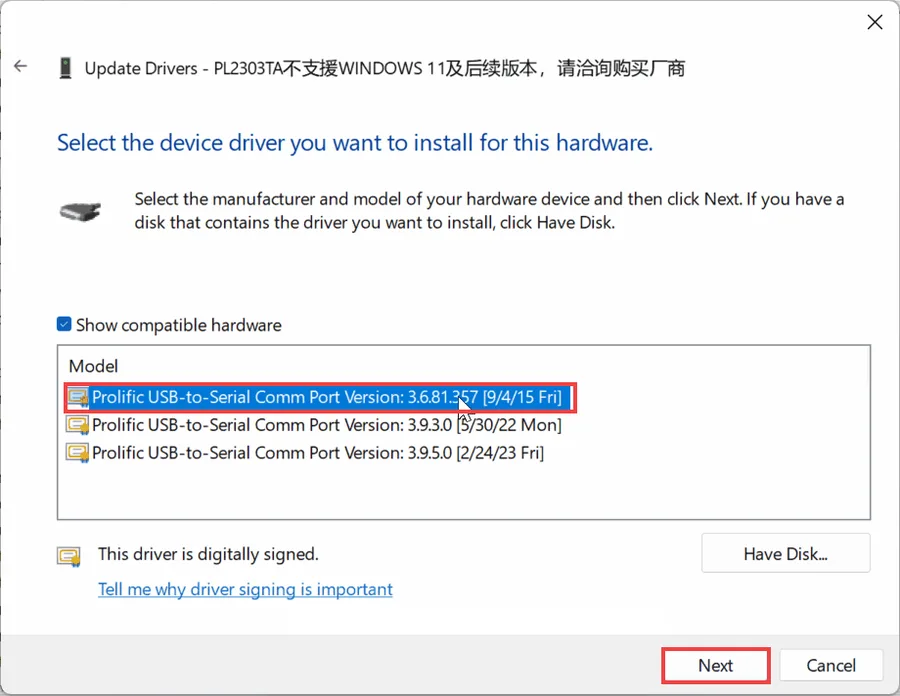
- Keep Show compatible hardware ticked, select the 2015 version — Prolific USB-to-Serial Comm Port Version: 3.6.81.357 [9/4/15], then click Next.
- Wait for “Windows has successfully updated your drivers”, then click Close.
- The cable now shows as Prolific USB-to-Serial Comm Port (COMx) — it's fixed. Go back to the tool, click Scan Ports, then Connect.
Prefer a video? Watch the same steps as an animation →
FAQ
What's new
- Apply preview — clicking Apply now shows a full list of commands before anything is sent. Review and confirm, just like Import.
- Factory Reset guard — type RESET to unlock the reset button, preventing accidental wipes.
- APN, Server and Port are now pre-filled from the device's current settings after connecting — no need to retype them.
- Reboot hint shown below the Apply button — a reminder not to unplug during the write sequence.
- Mode 7 description updated to be self-contained (no longer references Mode 0).
- MT600 and MT600-NB support — vehicle trackers with ACC-based reporting. Three intervals: ACC ON, ACC OFF moving (towed), ACC OFF parked. Device family detected automatically on connect; the UI adapts accordingly.
- Optional APN username & password for SIMs that require authentication.
- PWA now works fully offline after first visit.
- Security fix: user-typed commands are no longer echoed unescaped in error messages.
- Configure a real MT700 / MT710 over USB — no longer a demo.
- Model, IMEI and firmware detected automatically on connect.
- Simpler Network setup — APN, Server and Port now on one row.
- One-click Apply & Reboot with guided working modes.
- Import / Export configuration as a command list.
- Device Log with save-to-file, plus offline app (PWA).